
A path becomes unavailable
A calm refusal, a secured district or an order can close the obvious route. Decide what permission, negotiation or different approach would make sense.
When the way forward resists
A route closes. Help is refused. Attention follows the party. Roll an authored obstructive turn, add a detail and decide how the scene responds.

Resistance with a reason
Use an authored obstruction when the scene calls for friction. Choose how serious it becomes and whether its premise fits the campaign.
A calm refusal, a secured district or an order can close the obvious route. Decide what permission, negotiation or different approach would make sense.
Contacts decline involvement and institutions close ranks. Decide what the party can learn from that refusal and how other people might respond.
Open surveillance, an accusation or a public incident can make quiet action harder. Establish what witnesses know before deciding what follows.
An ally suffers, an opportunity expires or a goal stops being viable. Read these stronger turns carefully and use them only when their scale fits.
Read the setback before using it
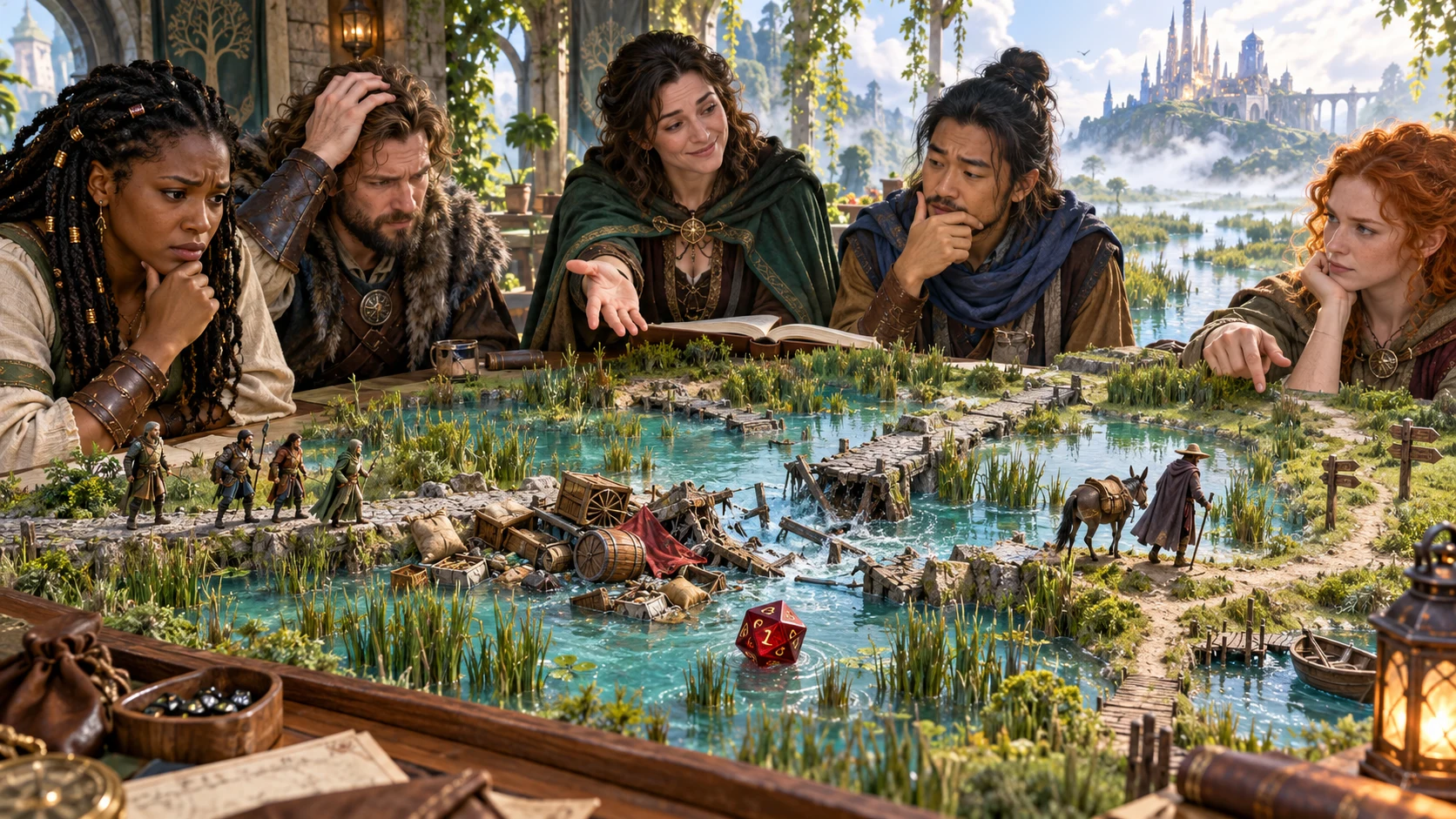
The illustration shows a group considering a damaged crossing. Decide the cause and stakes of a setback yourself.
Review narration, the chosen detail and DM guidance before applying it. The table does not infer your scene or set its difficulty.
Two dice and your judgement
Use random selection during play or deliberate values when preparing.
Leave the main die on random, enter a physical roll or choose a known entry. The twenty authored results describe different forms of obstruction.
Select one of that entry’s six details. Expand the whole spread when you want to inspect the alternatives before using the result.
Read the introduction and DM guidance together. Some entries call for retreat or close a goal. Decide whether that is appropriate before presenting it.
Copy suitable text or save the result locally. Review player text before sharing and record any consequences you apply in your own campaign notes.
What the tool provides
The current tool offers a fixed table, practical dice controls and a saved list on your Windows device.
Select a refusal, closed route, disputed permission, public exposure or other setback. The table gives the scene resistance; you decide its consequences.
Roll a d6 within the selected turn. Read that detail or expand the complete six-detail spread before choosing what belongs in the scene.
Leave either die on random or enter your own d20 and d6 rolls. Choose a known entry deliberately when preparing a scene.
Review the introduction beside practical DM control notes. Adapt the people, location and seriousness to your campaign yourself.
Hold the main entry while changing its detail, or keep the detail number while changing the main entry. Held numbers take priority over typed values.
Repeats are allowed by default. No-repeat excludes the current entry from the next random main roll. Typed and held entries can still repeat.
Copy narration and the chosen detail for players, or the fuller result with DM guidance for yourself. Review the selected detail for hidden information before sharing.
Save a result manually, reopen it or remove it from this Windows device. Each save creates a separate record, rather than account history.
Different forms of resistance
These examples paraphrase the actual table. They do not apply rules, remove resources or alter encounter state.
A calm authority prevents the current approach. The detail may concern clearance, timing or mistaken identity. Decide how that barrier fits the place.
Another group is already pursuing an intersecting objective. Determine whether negotiation, competition or cooperation belongs in the scene.
Someone urges the party to stop before matters escalate. Choose what the warning reveals and what the characters can reasonably discover.
An earlier choice affects trust, access or resources. Establish a clear connection to what happened and decide what can still change.

A setback in a wider scene
The washed-out causeway illustrates an obstruction, with surrounding paths still visible. The table does not calculate routes or supply these images.
Entries use city and institutional language. Adapt them to your setting; some close paths or require a larger change of direction.
Keep the part that fits
Check the dice controls before rerolling so the result changes as you intend.
Keep the current d20 entry while the d6 can change. A typed d6 still applies unless that die is also held. Useful when the kind of obstruction fits but the detail needs work.
The hold preserves the d6 number, not its wording. A new main entry uses its own detail at that number. Holding both dice keeps the whole result.
Repeats are allowed by default. No-repeat excludes only the current entry from random main selection. Typed and held entries take priority and can repeat.
Fresh reroll requests a new random source while retaining typed values, holds and no-repeat. A supplied seed repeats with identical controls and prior result; an automatic label is not a guaranteed replay code.
Keep and share deliberately
Choose the text for its audience and understand what the saved list restores.
Save creates a separate local record each time. Open or delete records from the list. There is no account synchronisation, autosave, search, tagging or version history.
Loading restores the result and seed. It does not restore every dice, hold or repeat setting. Inspect those controls before another roll and keep important notes separately.
The player copy contains narration and the detail without DM control notes. Read them before sharing: a detail can name hidden opposition or suggest future consequences.
The DM copy includes the entry, dice values and guidance. It omits the complete spread and save metadata. There are no download or import controls and no direct Combat PRO transfer or live scene connection.
Choose access for your toolkit
Unhelpful Flow d20 is a paid standalone tool. Create a free account first, then review your selection and subscription.
Select Unhelpful Flow d20 individually. Creating a free account does not by itself include paid generator access.
Choose a five-generator pack for eligible standalone tools alongside this one. It provides selection capacity, rather than automatic access to every VISINVOKE product.
Review larger selected-generator packs in your account. Check generators, subscription and reselection terms before choosing your toolkit.
Combat PRO, Battlemaps and image systems have their own access models. Standalone generator subscriptions do not include image or animation credits.

Choose an authored obstruction when the scene needs resistance.
Read the selected detail or inspect its alternatives, then decide whether it fits.
Start Here and How Do I help cover dice, holds, repeats, copies and local saves.
The prompt does not apply penalties, start combat or rewrite campaign state. Decide what changes through play.
Build your tabletop toolkit
Each card opens that product’s own website. Review purpose and access separately; related products do not promise included access or automatic synchronisation.

Discover and open your supported Windows products through one connected VISINVOKE account.

Explore environment packs for tactical locations and the places your encounters unfold.
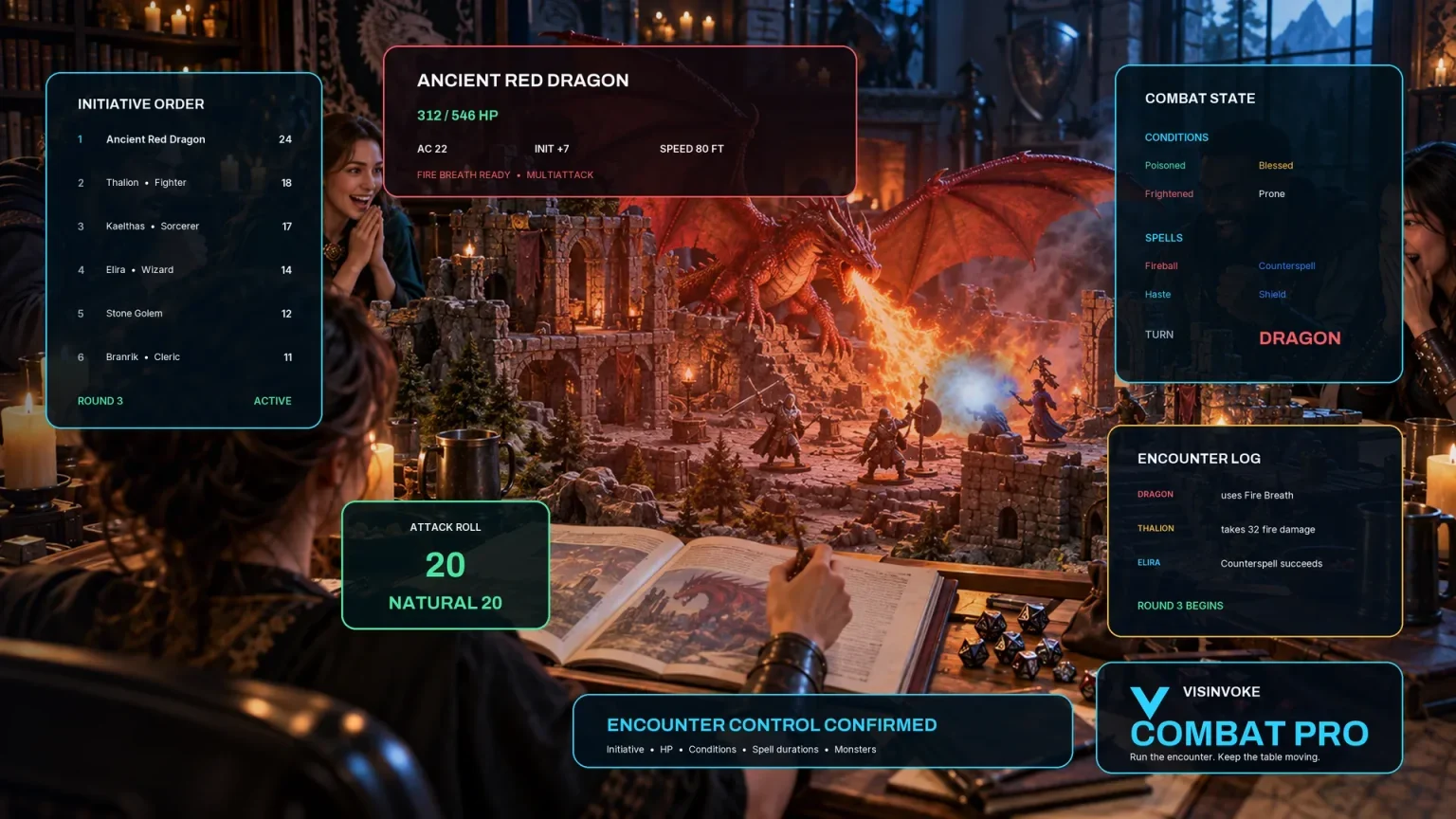
Review prepared opposition, tune creature statistics and run tabletop encounters with its own access.
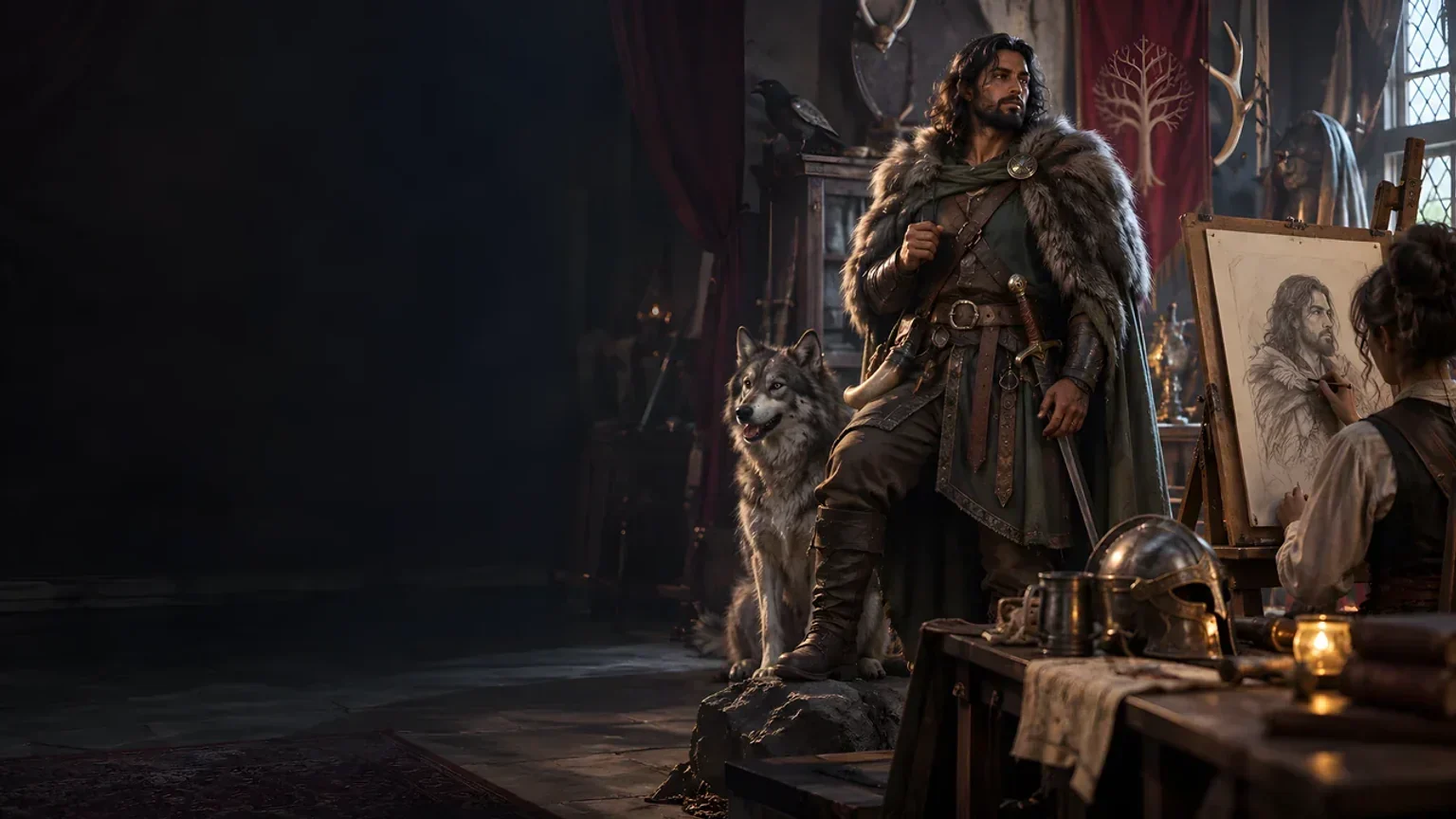
Create focused character, monster, item and location images to complement your tabletop preparation.

Create guided commercial visuals for websites, brochures and wider creative projects.

Explore a separate futuristic RPG experience with its own world, characters and progression.
Product artwork illustrates obstructive scene situations, not application screens or actual generated image output.
Quick answers
Understand the table and the limits of copying and local records before opening the tool.
It selects from twenty authored obstructive scene turns, each with narration, DM guidance and six details. Results include denied access, scrutiny, interference, lost opportunities and changed objectives. Some close a route or require retreat; the tool does not guarantee a minor setback or several remaining options. Review the result and adapt it to your group. It does not create a bespoke scene from a description or infer campaign state.
Yes. Set the d20 from 1 to 20 and the d6 from 1 to 6, or leave either on random. A hold takes priority over a typed value for that die. Expand the selected entry’s six-detail spread to inspect its alternatives.
Hold main keeps the current d20 entry. Hold detail keeps the d6 number, not its text; a new main entry has its own detail at that number. Holding both retains the result. No-repeat is optional and excludes only the current main entry during a random main roll. Typed and held entries bypass that exclusion.
A supplied seed repeats with the same dice choices, holds, previous result and repeat settings. An automatically displayed seed is not a guaranteed replay code. Fresh reroll requests a new random source while retaining typed values, holds and no-repeat. Those controls may keep part or all of the result unchanged.
Save creates a separate record in this Windows device’s application data. Reopen restores the result and its seed, but not every dice or hold setting. The list offers open and delete. There is no account synchronisation, autosave, search, tagging or version history. Keep important campaign notes separately.
The player copy contains narration and the selected detail without DM control notes. Read it before sharing: details may identify hidden opposition or future consequences. The DM copy includes the main entry, dice values and DM guidance. It is not a complete save backup. There are no download or import controls and no direct Combat PRO transfer or live scene connection. Apply any campaign consequences yourself.
Continue in VISINVOKE
Create a free VISINVOKE account and choose the required generator access.
Get Desktop Command Centre from your account installer page. Sign in on Windows, then open Unhelpful Flow d20.